Agency accessibility field guide
Automated vs Manual Accessibility Testing: A Guide for Web Agencies
Use automation for repeatable coverage, human testing for real interaction, and one reporting workflow that clients can act on.
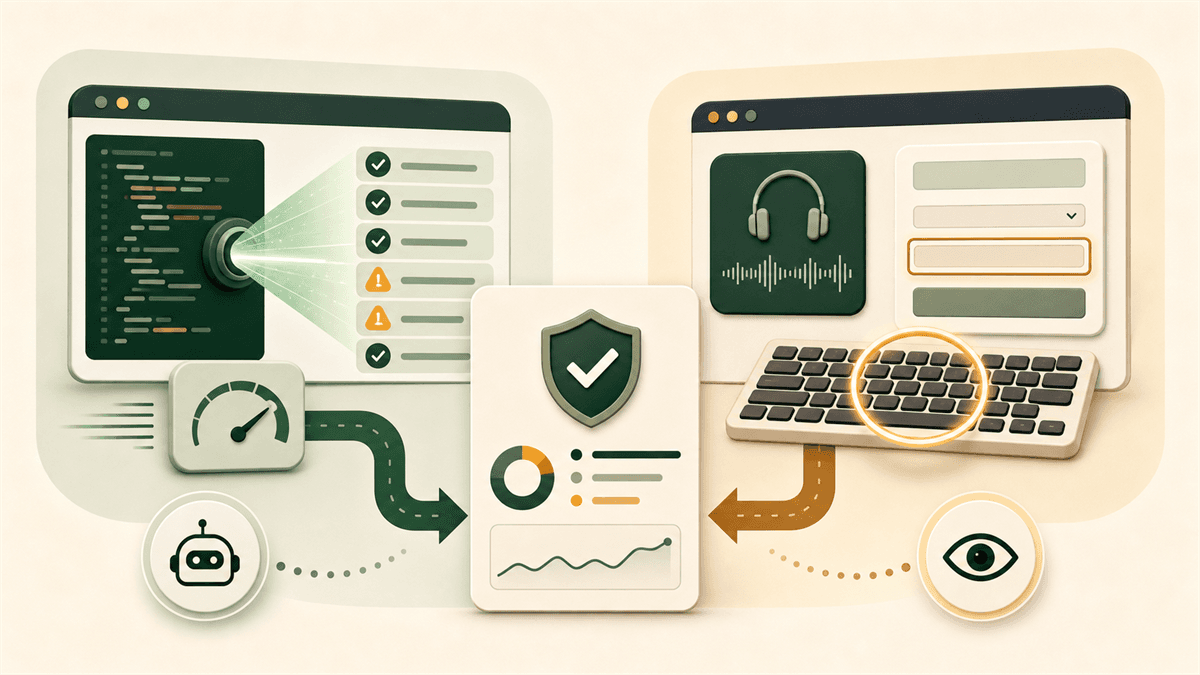
The automated vs manual accessibility testing decision is not a choice between a fast tool and a slow person. The two methods answer different questions. Automation asks whether code matches rules a machine can evaluate consistently. Manual testing asks whether a person can understand, navigate, and complete the experience using different ways of interacting with the page.
Automate every page you can, manually test every critical user journey, and never describe an automated result as proof of complete WCAG conformance.
1. What automated accessibility testing checks
Automated scanners are strongest when the requirement can be translated into a deterministic rule. The scanner inspects the rendered page, its document structure, accessible names, ARIA attributes, and computable styles. It can repeat the same tests across templates without getting tired or interpreting the rules differently from one page to the next.
Typical findings include images without an altattribute, form controls without a programmatic label, buttons without an accessible name, invalid ARIA attributes, duplicate IDs, missing document language, empty links, certain heading or landmark problems, and many color combinations that fail the required contrast ratio.
Automation finds the missing name
An icon-only menu button contains an SVG but no visible text, aria-label, or referenced label. A scanner can flag that reliably on every page where the component appears.
One defect becomes a pattern
If the same unlabeled search control appears in 40 client pages, automation makes the shared component problem visible instead of treating it as 40 unrelated defects.
This breadth is valuable before launch and after releases. A scan can catch a regression introduced by a CMS template, design-system update, or third-party widget before an account manager discovers it during a client presentation. Agencies can use the CompliantScan WCAG compliance checker for this automated first pass before beginning manual review.
2. What automated scanners cannot reliably detect
A machine can confirm that alternative text exists; it cannot reliably decide whether that text communicates the image's purpose in context. The value alt="image"may satisfy a simple presence check while still being useless. A decorative flourish with a detailed description can also add noise even though it looks thorough in a report.
The same limitation applies to interaction. Source code can suggest a focus order, but only using the interface reveals whether the order matches the visual and task sequence. A modal may have a dialog role and still open without moving focus, trap a keyboard user, or return focus to the wrong place when closed.
- Whether link text makes sense in the surrounding content.
- Whether headings describe sections and form a useful outline.
- Whether instructions and error messages are understandable.
- Whether live updates are announced at the right time.
- Whether captions accurately represent meaningful audio.
- Whether a journey is practical at 200% or 400% zoom.
W3C's guidance on selecting accessibility evaluation tools explains that tools assist evaluation but cannot automatically check every accessibility aspect; human judgement is required.
3. What requires manual accessibility testing
Manual testing should follow the user journeys that matter to the client, not a random tour of components. For a lead generation website, test navigation, a service page, the contact form, validation errors, and the confirmation state. For ecommerce, add product selection, cart updates, account creation, checkout, and order confirmation.
The reviewer must make decisions automation cannot make. Is the main call to action announced clearly? Can a keyboard user operate the date picker? Does the screen reader announce that an item was added to the cart? When the form fails, is focus moved to a useful error summary or left at the submit button with no explanation?
Open the mobile menu with Enter. Move through every menu item using the keyboard. Close it with Escape. Confirm focus returns to the button that opened it.A scanner may identify the button's name and ARIA state. The complete interaction still requires a person to verify focus movement, order, escape behavior, and state announcements.
4. A practical combined workflow for web agencies
The most efficient workflow uses automation to narrow the search area before specialists spend time on manual review. Start with scope: choose representative templates and critical journeys. A five-page marketing site and a logged-in SaaS product should not receive the same test plan.
Our detailed website accessibility audit checklist for web agencies can be used as the operating checklist for this combined process.
5. Keyboard, screen-reader, and form testing
Keyboard testing
Put the mouse aside. Use Tab and Shift+Tab to move between interactive controls, Enter and Space to activate them, arrow keys where the component pattern expects them, and Escape to close temporary interfaces. Confirm focus remains visible, follows a logical sequence, reaches every action, and never becomes trapped.
Example: a pricing comparison may look like three cards, but the keyboard sequence should reach only genuine controls. If every decorative card wrapper receives focus, users must cross unnecessary stops before reaching the plan button.
Screen-reader testing
Use at least one combination appropriate to the project, such as NVDA with Chrome or Firefox on Windows, or VoiceOver with Safari on macOS and iOS. Review the page title, headings, landmarks, link and button names, form labels, validation errors, and dynamic status messages. Do not test only by pressing Tab; screen-reader browse navigation and form interaction expose different problems.
Form testing
Submit the form empty, enter an invalid value, correct it, and submit successfully. Check that instructions are available before they are needed, labels remain visible, required state is communicated without color alone, and errors identify both the field and the corrective action. For grouped controls, verify the question or group name is announced with each option.
6. How to present automated and manual findings to clients
Clients rarely need two disconnected spreadsheets. Use one report, but label the evidence clearly. Each issue should state how it was found, where it appears, who is affected, the practical consequence, severity, and the recommended owner. Keep repeated template failures together so the client sees one systemic repair rather than an inflated defect count.
Search button has no accessible name
Detected on 14 pages. Fix the shared header component once, then rescan all templates.
Filters do not announce updated results
Confirmed with a screen reader during the product-listing journey. Add an appropriately timed status announcement.
Separate confidence from severity. An automated result can have high detection confidence and low user impact; a manually observed checkout barrier may be harder to reproduce but business-critical. Present both dimensions so the client can approve the right work.
7. Limitations of automated compliance claims
Avoid claims such as "the website is fully compliant" or "the scan certifies WCAG 2.2 AA." A clean automated result means the tested rules found no failures in the rendered pages that were scanned. It does not prove that every success criterion was evaluated, every journey was included, or every disabled user can complete the experience.
Use precise language instead: "Automated checks found no failures in the selected pages on the test date; manual keyboard, screen-reader, zoom, and content review remain necessary." This is more honest and more useful because it tells the client what evidence exists and what work is still outstanding.
8. How CompliantScan fits into the automated process
CompliantScan handles the repeatable first pass. It loads the live page in a real browser, runs automated accessibility checks, groups findings by severity, preserves page evidence, and turns raw violations into a report suitable for agency and developer conversations.
That makes it useful for pre-sale discovery, design QA, pre-launch review, regression checks, and ongoing monitoring. It does not replace a knowledgeable manual evaluator. It gives that evaluator a stronger starting point and prevents paid manual time from being spent rediscovering machine-detectable template defects.
A balanced agency testing plan
- Scan representative pages before manual testing.
- Fix repeated component problems before retesting journeys.
- Manually test keyboard, screen-reader, zoom, and forms.
- Report automated and manual evidence in one priority plan.
- Rescan after fixes and after meaningful releases.
Start with reliable automation
Build a better accessibility testing workflow
Run the automated first pass with CompliantScan, then use your manual testing time on the journeys and decisions that need human judgement.