Agency accessibility field guide
Website Accessibility Audit Checklist for Web Agencies
A repeatable process for finding barriers, deciding what needs human review, and turning WCAG findings into a client-ready plan.
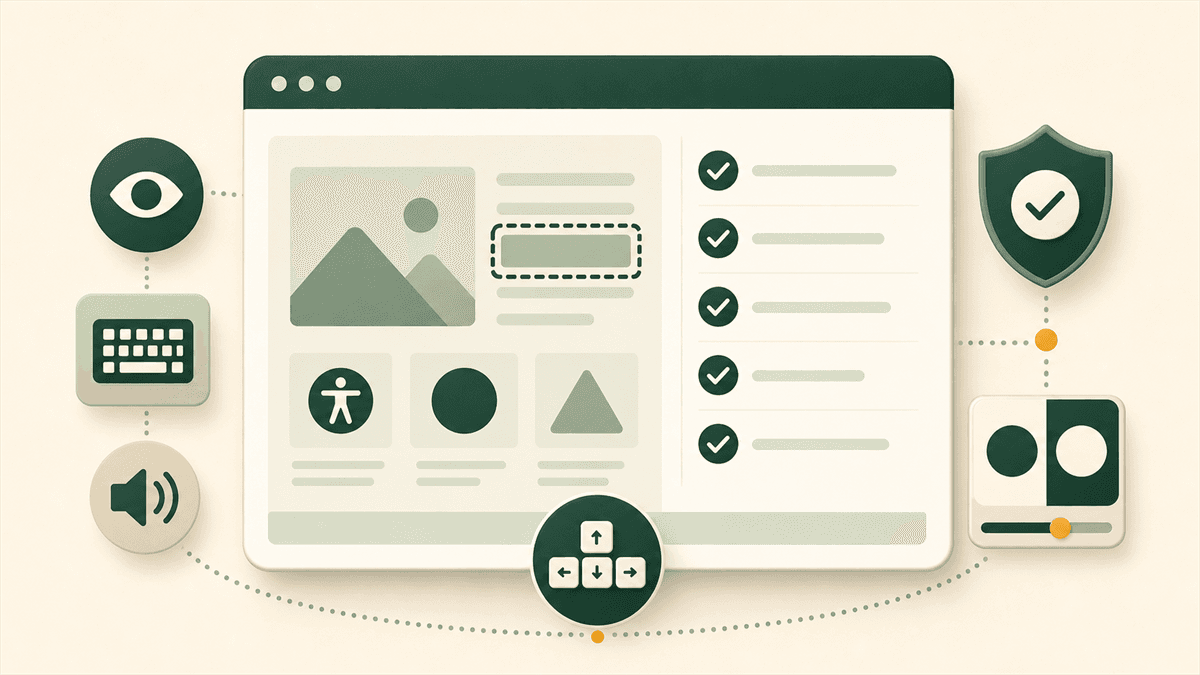
A website accessibility audit checklist gives an agency a consistent way to review client work before launch, during a redesign, or as part of an ongoing care plan. The strongest audits combine fast automated detection with focused human testing. They also translate technical findings into decisions a client can understand: what is wrong, who it affects, how urgent it is, and what the team should do next.
Do not produce a list of errors with no context. Produce a prioritized improvement plan that design, development, content, and client stakeholders can act on.
1. What an accessibility audit includes
A useful accessibility audit examines more than the homepage. Start by defining a representative sample: the homepage, a content page, a landing page, a form, a search or listing page, and any important conversion flow. For an ecommerce site, add product, cart, and checkout pages. For a SaaS product, include authentication and one core in-app workflow.
Record the tested URLs, viewport assumptions, browser and assistive-technology combinations, WCAG version and target level, plus the date of testing. Most agency projects target WCAG 2.2 Level AA, but the contract or client policy should determine the scope. Use the official W3C WCAG 2.2 Quick Reference to connect each finding to the relevant success criterion.
- Define representative pages and critical user journeys.
- Run automated checks on every page in scope.
- Perform keyboard, zoom, focus, and screen-reader checks.
- Document evidence, impact, severity, and remediation.
- Retest fixes rather than assuming a code change worked.
2. Automated testing versus manual testing
Automated tools are excellent at repeatable checks: missing accessible names, certain contrast failures, invalid ARIA attributes, duplicate IDs, empty links, and structural issues that can be detected in the page code. They are fast enough to run during development and can reveal patterns across many templates.
Automation cannot decide whether alternative text communicates the purpose of an image, whether focus order makes sense, whether instructions are understandable, or whether a modal is genuinely usable with a screen reader. It also cannot confirm every requirement for WCAG conformance. Treat an automated scan as evidence and triage—not a certification.
Best for breadth
Detect recurring code-level problems quickly across page templates and after releases.
Best for usability
Confirm meaningful text, logical behavior, understandable flows, and real keyboard or screen-reader use.
Agencies can start by choosing to scan a website for accessibility issues to identify likely hotspots, then spend manual testing time on the pages and components with the greatest user or business impact. The WCAG compliance checker guide explains exactly which automated WCAG 2.2 checks are included. For a deeper analysis of combining software detection with human review, read our guide on automated vs manual accessibility testing.
3. WCAG checks agencies should prioritize
Prioritize by user impact and reach, not by whichever rule ID appears first. A missing label on every checkout field deserves attention before a minor issue on an archived page. Start with blockers in navigation and conversion flows, then address widespread template-level failures.
Also test zoom and reflow at 200% and 400%, visible focus, target size, error identification, page titles, language, link purpose, and status messages. Your WCAG audit checklist should map each issue to a component owner so fixes can be applied systematically rather than page by page.
4. Images and alternative text
Every informative image needs a text alternative that serves the same purpose in context. A product photograph might need the product name and important visual distinction. A chart needs its conclusion and access to the underlying data. A linked logo should identify the destination or action, not merely say “image.”
Decorative images should normally use an empty alt attribute so assistive technology can skip them. Do not automatically fill every alt attribute with the file name or nearby heading. During manual review, ask: if the image disappeared, what information or function would the user lose?
<img src="chart.png" alt="chart"><img src="chart.png" alt="Support requests fell 32% after the redesign">5. Forms and labels
Form controls need persistent, programmatically associated labels. Placeholder text is not a substitute: it disappears after typing, often has weak contrast, and may not provide a reliable accessible name. Match each visible label to its input with for and id, or use another valid accessible naming method.
Group related choices with fieldset and legend. Explain required formats before submission. When validation fails, identify the field, describe the problem, and move focus or provide an error summary that keyboard and screen-reader users can find. Test the entire form without a mouse, including date pickers, custom selects, file uploads, and success messages.
Form fields need accessible labels
Affected elements: 6 · Pages: 1 · Check: Form control has an accessible name
6. Color contrast
Check text against the actual background in every state, including hover, focus, disabled, validation, overlays, and text placed on images or gradients. WCAG 2.2 Level AA generally requires a contrast ratio of at least 4.5:1 for normal text and 3:1 for large text. User-interface components and meaningful graphical objects also need sufficient contrast against adjacent colors.
Automated contrast results can be noisy when opacity, layered backgrounds, or dynamic states are involved. Confirm flagged combinations with a contrast analyzer and review components, not isolated hex values. A token-level correction to muted text may resolve dozens of instances across the website.
7. Keyboard navigation
Put the mouse aside. Starting at the browser chrome, use Tab, Shift+Tab, Enter, Space, Escape, and arrow keys where expected. Every interactive element should be reachable and operable. Focus order should follow the visual and logical reading order, and the focused element should always be visible.
Pay close attention to menus, modals, carousels, accordions, cookie banners, custom dropdowns, and embedded widgets. A modal should move focus inside when opened, keep focus within while active, close with Escape when appropriate, and return focus to its trigger. Record keyboard traps and unreachable primary actions as high-priority findings.
8. Headings and landmarks
Headings should describe the page outline, not be selected merely for visual size. Use one clear page-level heading, then nest sections in a logical hierarchy. Skipping a level is not automatically a failure in every circumstance, but a confusing outline makes navigation harder for people who browse by heading.
Check that major regions use appropriate landmarks such as header, navigation, main, complementary, and footer. Keep the main landmark at the top level and provide labels when multiple navigation or complementary regions need to be distinguished. A descriptive page title, logical headings, and landmarks give users several efficient ways to understand and move through the page.
9. How to present accessibility findings to clients
Clients rarely need an unfiltered developer export. Lead with a short executive summary: pages reviewed, issues found, the highest-impact risks, and an honest statement about the limits of automated testing. Then group findings by priority and component so the client can budget and sequence the work.
Every finding should include a plain-language title, affected user impact, evidence or screenshot, affected pages or components, WCAG reference, and a recommended fix. Separate “must fix before launch” from improvements that can be scheduled later. Avoid promising legal compliance based on automation alone.
Use our website accessibility report template for web agencies to turn findings into a clear client deliverable. If reporting is part of your service, compare CompliantScan accessibility scanner pricing for ongoing monitoring and client-ready reports. The deliverable should help the client approve work—not overwhelm them with scanner terminology.
10. How often websites should be rescanned
Rescan after any meaningful component, template, content, or dependency change. At minimum, test before launch, immediately after remediation, and after major releases. Sites with frequent publishing, ecommerce changes, third-party widgets, or multiple development teams benefit from weekly or monthly automated monitoring.
A quarterly manual review is a sensible starting point for many agency maintenance plans, but risk and release frequency should determine the cadence. Maintain a baseline so new findings can be separated from accepted backlog. When a recurring issue returns, fix the design-system component or content workflow that produced it rather than repeatedly patching individual pages.
Before you send the report
Agency website accessibility testing checklist
- Scope includes critical pages and complete user journeys.
- Automated findings have been reviewed for context.
- Keyboard, focus, zoom, and responsive reflow were tested.
- Images, forms, contrast, headings, and landmarks were reviewed.
- Findings explain user impact and provide actionable fixes.
- Critical fixes were retested before being marked complete.
- The report states what automated testing cannot confirm.
- A rescan date or monitoring cadence has been agreed.
Turn the checklist into action
Need a faster way to audit client websites?
Scan a website with CompliantScan to find automated WCAG issues, prioritize fixes, and generate a client-ready report.